
Getting started
on your Mac.
Plan package checks, model selection and a small task for a future evaluation. The installation and API examples below illustrate the intended setup, rather than a currently supplied build.
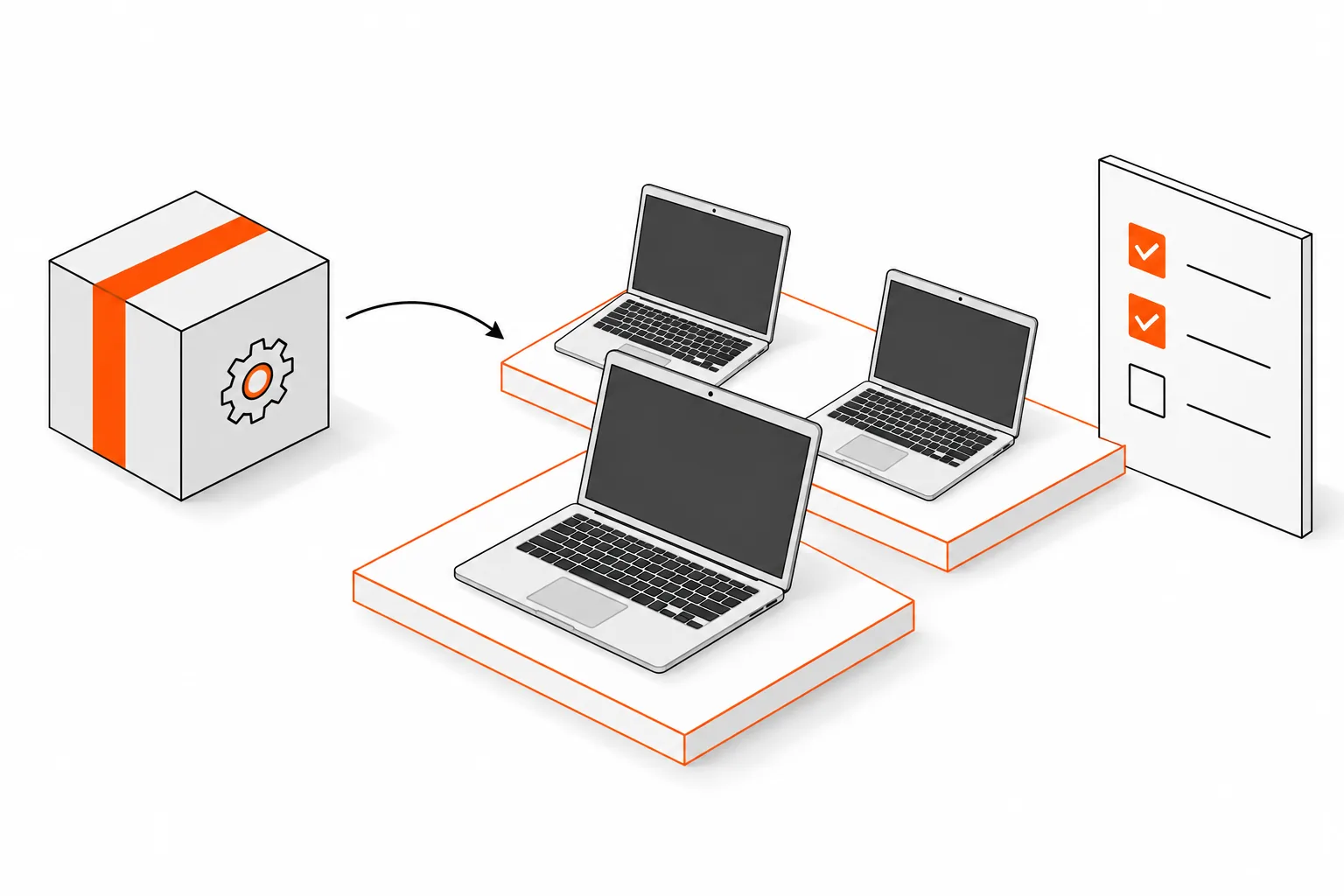
Start small.
Use an Apple Silicon Mac and copies of a few files. Pick a task with a result you can check, such as making a small change in a test repository.
- Check the Mac’s chip, RAM, macOS version, and free disk space against the requirements of your package and model.
- Put the files for your first task in one folder or repository.
- On a managed Mac, check installation and network restrictions with the person who manages it.
The deployment planning guide covers setup across a team’s Macs, including access, updates, and support.
Check the package before installing.
For a future supplied evaluation package, set the path below to that file. Check its signature and Gatekeeper assessment before an approved installation, then verify the installed app.
# Planning example: set this to a future supplied installer.
QWERTY_PKG="/path/to/Qwerty.pkg"
pkgutil --check-signature "$QWERTY_PKG"
spctl --assess --type install --verbose "$QWERTY_PKG"

# After an authorized installation:
codesign --verify --deep --strict --verbose=2 /Applications/Qwerty.app
These are planning checks for a future package. Its signing, notarization, supported model and installation requirements will need to be established before deployment.
Choose a model that fits.
A local model shares memory with the other apps on your Mac. Check its memory and disk requirements, and make sure its license allows your intended use. Use the runtime settings supplied for your package.
Keep the publisher, source revision, file hashes, and settings with your setup notes so you can load the same model again. Try a short prompt before adding larger files, and watch memory use as you work.
The model approval checklist covers these checks and your team’s approval.
Give it one task.
- Open the app, check the loaded model, and select your test folder or repository.
- Decide what it may change and which actions need approval.
- Ask for one change or one answer. Check the source references against the files; for code, read the proposed diff.
- Approve a change only after inspecting it, then run the relevant checks.
If your setup includes an external provider, your team must separately approve its purpose and the data it receives. Installation, updates, and exports may also need network access. See example workflows →
Make a request from a script.
These requests illustrate the intended Engine API. The endpoint, authentication and parameters need to be verified in a future working build before use; replace the illustrative values with that build’s documented settings.
# Interface-design example; verify against a future working build.
# Set QWERTY_CLIENT_TOKEN through your approved secret-handling path.
# Do not copy the native app's Keychain credential into a script.
export QWERTY_ENGINE_URL="http://127.0.0.1:11434"
export QWERTY_ACTOR="your-approved-client-id"

curl --fail --silent --show-error \
  "$QWERTY_ENGINE_URL/v1/models" \
  -H "Authorization: Bearer $QWERTY_CLIENT_TOKEN" \
-H "X-Qwerty-Actor: $QWERTY_ACTOR"# Replace approved-model-id with the model ID returned by /v1/models.
curl --fail --silent --show-error \
"$QWERTY_ENGINE_URL/v1/chat/completions" \
-H "Authorization: Bearer $QWERTY_CLIENT_TOKEN" \
-H "X-Qwerty-Actor: $QWERTY_ACTOR" \
-H "Content-Type: application/json" \
--data '{"model":"approved-model-id","messages":[{"role":"user","content":"Summarize this synthetic sentence: Review uncertain findings before use."}],"max_tokens":128,"temperature":0,"stream":false,"enable_thinking":false}'Use an approved model and client identity. Keep bearer tokens out of logs and screen recordings. Supported settings and answer quality depend on the package and model.
Make labels lowercase.
This written workflow starts with a function that returns value.strip() and a request to make labels lowercase. It illustrates the proposed diff to review in a future task.
The snippet below shows the expected change for this guide’s example. Save the version you have reviewed as normalize.py, then run it.
def normalize_label(value):
    return value.strip().lower()

assert normalize_label("  Shipping Label  ") == "shipping label"
assert normalize_label("READY") == "ready"
assert normalize_label("") == ""
print("3 example checks passed")python3 normalize.py
# Expected: 3 example checks passedFor your own task, keep the request and diff alongside the check results. Note the model and whether you applied the change. Save only material your team permits you to retain.
If something goes wrong.
- Check that the app can access the selected files and that the approved model is loaded with the right runtime settings.
- Note the app version and release hash, model, Mac, settings, and what you were doing when it failed.
- Follow the restart or repair instructions supplied with your package. Collect only diagnostics your team allows you to share.
When testing an update, retain the previous approved package and try the supplied rollback procedure. Check the support terms, retention rules, and removal instructions that apply to your evaluation.
Guides and templates.
Need help with your setup?
DEFENSE FIRST. PRIVATE WORK ACROSS SECTORS.
Start with your team's work.
Technical knowledge, even when disconnected.
Evaluate approved manuals, document versions and source-linked answers on your actual Macs.
Defense workflows →02 / GOVERNMENTFind the policy behind an answer.
Work through approved policies and administrative records with a clear source and review trail.
Government workflows →03 / LEGALWork from your own matter documents.
Evaluate supplied-file questions and contract-playbook comparisons with professional review.
Legal workflows →